Quick start
Add the AutoDepthOfField component to your camera, configure minimal focus settings, and verify autofocus is working in minutes.
Get autofocus working
Add the AutoDepthOfField component to your rendering camera, configure focus settings, and check the live diagnostics.
Before starting, make sure the asset is installed and you are using an HDRP or URP project in Unity 6.
Add the component
Select the rendering camera
Select the camera that renders your scene in the Hierarchy.
Add AutoDepthOfField
In the camera's Inspector, click Add Component, search for AutoDepthOfField, and add it to the camera. Or, Component Menu > HIBIKI entertainment > Depth of Field > Auto Depth of Field.
Use perspective projection
Keep the camera's projection set to Perspective. PBADOF does not support orthographic cameras.
Check the pipeline camera data
For HDRP, ensure the camera has HDAdditionalCameraData. For URP, ensure it has UniversalAdditionalCameraData with post-processing enabled.
Check the Volume Mask
Ensure the camera's Volume Mask includes the layer assigned to the camera GameObject.
Repair reported issues
Use the repair action beneath the readiness panel to fix any issues reported by the component.
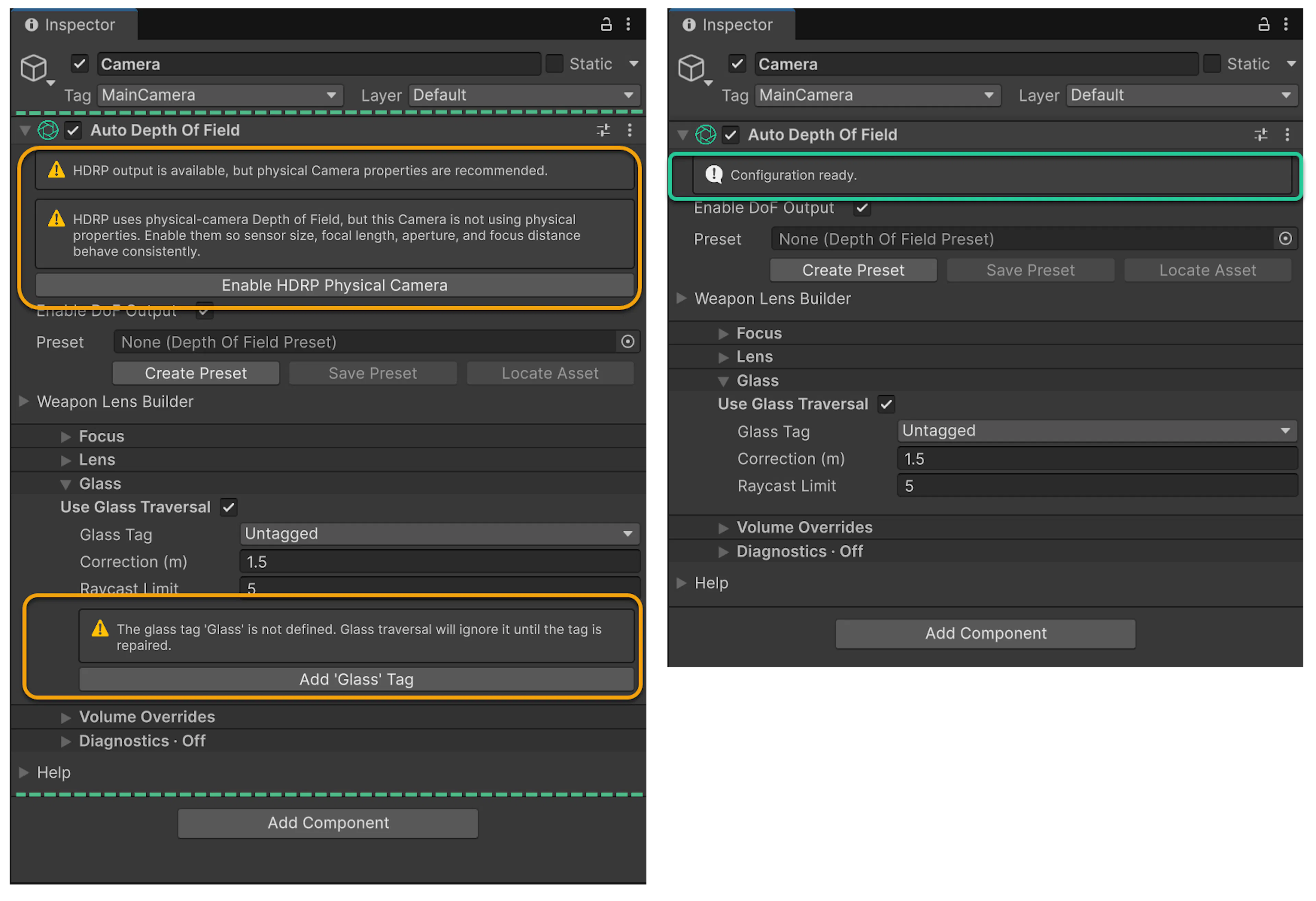
Only one enabled AutoDepthOfField component can own the output at a time. If you add a second component to another camera, it becomes passive and reports that state in the readiness panel.
Configure focus settings
Open the Focus section
Open the Focus section in the AutoDepthOfField component Inspector.
Select Centre ray
Set Focus Mode to Centre ray. This is the lowest-cost starting mode and the recommended choice for first use.
Set the Interaction Layers
Set Interaction Layers to the layers that contain objects the camera should focus on.
Configure focus tags
If tag checking is enabled, add every permitted focus tag.
Set Maximum distance
Configure Maximum distance, which defines the furthest distance the solver will raycast.
Set Transition response
Set Transition response to control how quickly the focus distance smooths between targets.
Configure the physical lens
PBADOF drives the render pipeline's physical depth-of-field effect. Adjust the apertures target and no-target values and focal length to control the look and save it to any preset. you may also enable the physically based toggle (HDRP) to use real-world lens behaviour in the depth-of-field calculation.
| Setting | What it controls |
|---|---|
| Aperture | The depth or shallowness of the depth-of-field effect. Lower values such as f/2.8 produce shallow depth of field. Higher values such as f/22 produce deep depth of field. |
| Focal length | The lens focal distance. Shorter lenses such as 24mm produce deeper depth of field. Longer lenses such as 200mm produce shallower depth of field at the same focus distance. |
| Physically based (HDRP) | Toggles real-world lens behaviour for the depth-of-field calculation. |
Physically based mode remains an HDRP pipeline only mode and is a heavy process item. It is recommended for offline renders or specific cinematics rather than real-time gameplay.
Verify it works
Add a focus target
Place a collider-bearing object, such as a Cube, in front of the camera on an included interaction layer.
Enter Play Mode
Enter Play Mode in Unity.
Watch the diagnostics
Move the camera or the object and observe the focus distance updating in the Inspector diagnostics / render pipeline CoC, or scene view with diagnostics modes on.
Check the depth-of-field effect
The depth-of-field effect should visibly shift as the focus target changes. You will see this on the camera component's Focus Distance and Aperture respectfully based on your setup.
If the solver does not find a valid hit, it falls back safely within the configured distance bounds. This is normal behaviour. The system does not error when no focus target is found. The system does not automatically turn off if no target is found.
Access the component from script
Use TryGetCurrent to retrieve the AutoDepthOfField component that currently owns the output.
// Get the active AutoDepthOfField component
if (AutoDepthOfField.TryGetCurrent(out var dof))
{
    // Read the current focus distance
    float distance = dof.CurrentFocusedDistance;

    // Force a diagnostic update
    dof.UpdateDiagnosticsNow();
}
Next steps
You now have basic autofocus working. To explore the full system, read about the Focus system, Override volumes, and Presets.