Physical lens and presets
Control the depth-of-field look with aperture, focal length, and physically based lens behaviour, and create reusable presets for cameras, weapon optics, and override volumes.
The depth-of-field lens model
HIBIKI entertainment's physically based auto depth of field drives the render pipeline's physical depth-of-field effect through lens parameters and focus data.
Two lens parameters control the core depth-of-field behaviour:
| Parameter | What it controls | Example |
|---|---|---|
| Aperture | The depth or shallowness of the depth-of-field effect. Lower values produce a thinner plane of focus, creating shallow DOF. Higher values produce a larger plane of focus, creating deep DOF. | f/2.8 produces shallow DOF, so much of the image is blurred. f/22 produces deep DOF, so much of the image remains in focus. |
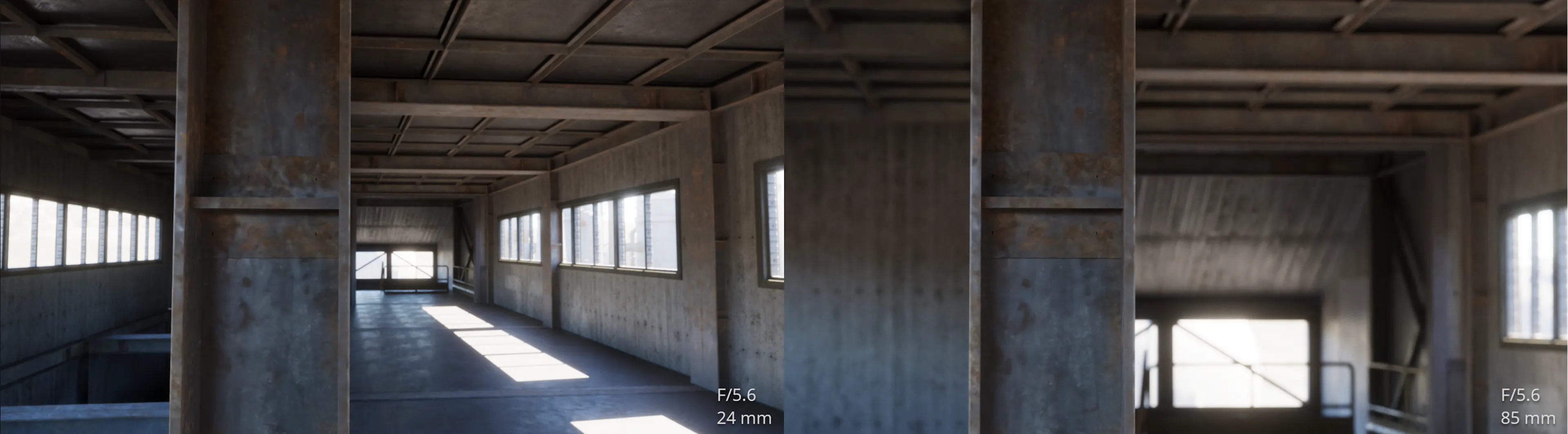
| Focal length | The lens focal distance. Shorter lenses produce deeper DOF. Longer lenses produce shallower DOF at the same focus distance and aperture. | A 24mm lens at f/4 has deeper DOF than a 200mm lens at f/4 when both focus on the same point. |
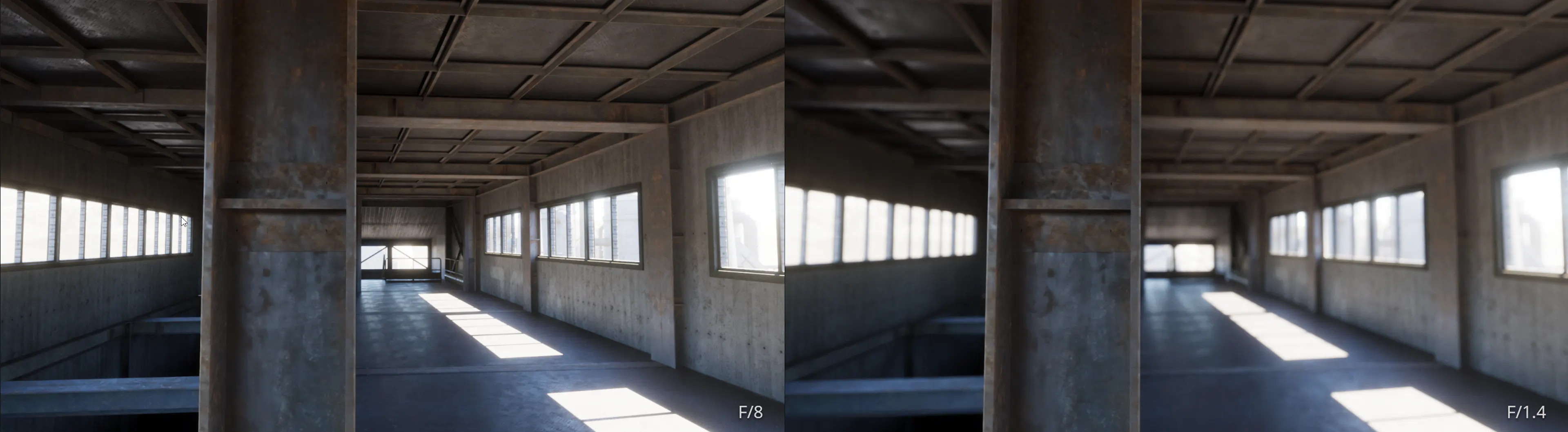
The physically based toggle enables real-world lens behaviour in the depth-of-field calculation. When enabled, the solver uses physical camera parameters. When disabled, the system uses a simplified model.
Physical camera exposure warning
Setting the Unity Volume Override Exposure to Physical Camera causes exposure to fluctuate inaccurately when PBADOF is active. Use Automatic Exposure instead of physically based camera exposure with PBADOF.
Presets
A DepthOfFieldPreset is a ScriptableObject that stores a complete lens and focus configuration. The asset can contain aperture, focal length, focus values, and other settings required to reproduce a particular depth-of-field look.
Presets can be created, saved, and applied to both the main AutoDepthOfField component and override volume components. Because they work within the Unity Volume Framework, you can blend different presets in and out of volumes to change lens behaviour for specific areas or moments in a scene.
A preset library can contain reusable configurations such as:
- Camera rigs: Store the lens and aperture setup for a particular camera style.
- Cinematic shots: Reuse a carefully tuned look across scenes or sequences.
- Gameplay states: Switch between exploration, inspection, and aiming configurations.
- Weapon optics: Store lens settings for different sight magnifications and zoom ranges.
Treat presets as named lens configurations rather than one-off snapshots. Create separate assets for distinct visual goals, such as a wide establishing shot, a portrait lens, and a weapon sight.
Creating and applying presets
Create a preset asset, configure its lens values, and then apply it to the component or volume that should use the configuration.
Create a DepthOfFieldPreset asset
Create the asset from the Unity project window using Assets > Create > HIBIKI entertainment > Depth Of Field Preset. You can also create a preset through the preset editor in the Inspector.
Configure the lens values
Set the preset's aperture, focal length, focus values, and any other lens settings required for the shot or gameplay state. Use a lower aperture value for a shallower focus range and a higher value for a deeper focus range.
Apply the preset
Apply the preset through the Inspector's preset controls, or use AutoDepthOfFieldAPI.ApplyPreset() from script. The preset is applied to the active component that currently owns the depth-of-field output.
Save current camera values
To copy the current camera values into an existing preset, call AutoDepthOfFieldAPI.SavePreset(). This is useful when you have tuned a camera interactively and want to preserve the result as a reusable asset.
Presets can also be applied to override volumes. Use this workflow to set different lens configurations for areas of your scene without changing the base AutoDepthOfField component settings.
Weapon lenses and ADS
PBADOF supports weapon-lens calculations for sight magnification and zoom ranges. The Weapon Lens Builder supports continuous zoom configurations from 1x to 4x, allowing the lens to change progressively as the player adjusts a variable optic.
Aim-down-sight data is stored in AimDownSightData and can be applied through ADS override volumes. When aiming is active, the active ADS override volume determines the lens and focus behaviour.
| Setting | Description |
|---|---|
| ADS focal length | Focal length used when aiming down sights. |
| ADS aperture | Aperture used when aiming down sights. |
| ADS focus distance | Target focus distance used while aiming. |
| Zoom range | Minimum and maximum magnification for variable optics, such as a 1x to 4x sight. |
Working with presets from script
Use the static API to apply a preset, save the current camera values, or retrieve the default preset. You can also set the active component's global focal length directly.
// Apply a preset to the active component
AutoDepthOfFieldAPI.ApplyPreset(myPreset);

// Save current camera values to a preset
AutoDepthOfFieldAPI.SavePreset(myPreset);

// Get the default preset
DepthOfFieldPreset defaultPreset = AutoDepthOfFieldAPI.GetDefaultPreset();

// Set the global focal length
if (AutoDepthOfField.TryGetCurrent(out var dof))
{
    dof.SetGlobalFocalLength(50f);
}
The calls perform these operations:
ApplyPreset(myPreset)applies the supplied preset to the component that currently owns the depth-of-field output.SavePreset(myPreset)copies the current camera values from the active output-owning component into the supplied preset.GetDefaultPreset()returns the system's defaultDepthOfFieldPreset.SetGlobalFocalLength(50f)changes the active component's global focal length to 50mm when an output-owning component is available.
ApplyPreset and SavePreset operate on the component that currently owns the output. If multiple AutoDepthOfField components are enabled, only the output-owning component controls the result; additional enabled components remain passive.
Blending presets with Cinemachine
Presets can be mixed with Cinemachine's focus rack to blend autofocus in and out from gameplay to Timeline and back. The optional Cinemachine 3 adapter provides lens authority modes that control whether PBADOF or Cinemachine owns the lens parameters during these transitions. See Cinemachine 3 integration for details.
Next steps
Explore Override volumes to learn how presets and lens settings can be blended spatially across your scene, or read about the Focus system for details on how the solver finds targets.