Focus system
Understand how PBADOF acquires focus targets using physics raycasts, configures Smart Subject mode, accuracy and sampling modes, tag filtering, Ground Assist, and diagnostics for stable autofocus across your scene.
What the focus system does
PBADOF finds a focus distance by casting physics raycasts from the camera, filtering the results, and selecting the most suitable target.
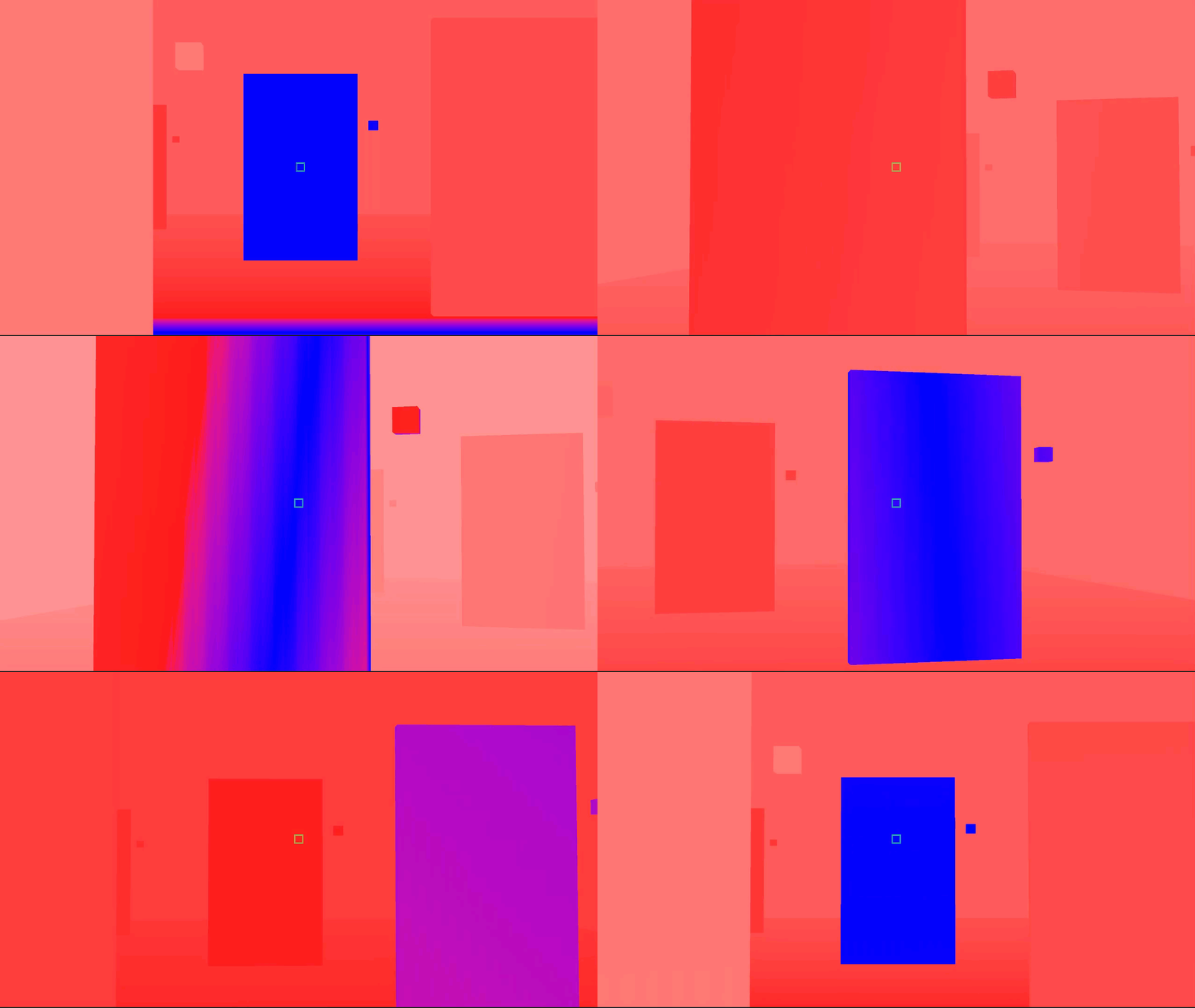
How focus acquisition works
Cast rays
PBADOF casts one or more physics raycasts from the camera.
Filter results
The solver filters each result using interaction layers, tag rules, exclusion settings, and distance limits.
Rank candidates
The solver ranks the remaining candidates.
Select focus distance
The solver selects the best focus distance from the ranked candidates.
Smooth transitions
The selected distance is smoothed over time for stable focus transitions.
The centre ray has the highest priority. When the centre ray reaches its maximum distance without finding a valid target, the solver can use surrounding rays instead. This allows focus to move smoothly from a centre target to the floor or an object composed at the side of the frame, rather than losing focus immediately.
The focus solver operates on physics colliders. A visible object must have a collider on an included interaction layer before it can become a focus target.
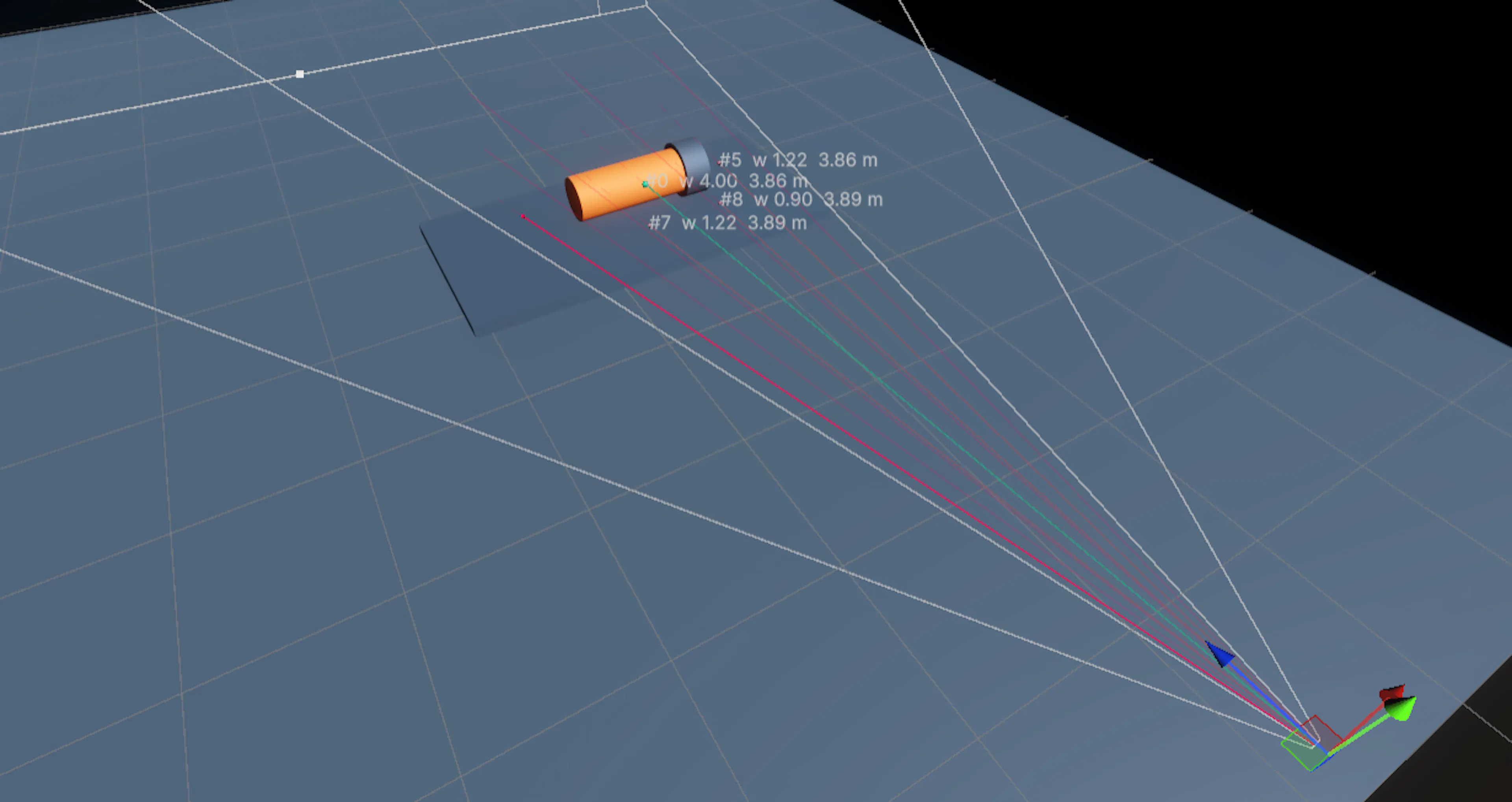
Focus modes
| Mode | Description | Cost | Recommended for |
|---|---|---|---|
| Centre ray | Single reference point from the centre of the camera. | Lowest | First-time setup, simple scenes, and mobile |
| Multi-ray | Multiple rays distributed across the camera frustum. Provides more stable sampling on fine or partially occluded targets. | Higher | Cinematic shots, complex geometry, and weapon optics |
Centre ray is the recommended starting mode. Switch to Multi-ray when you need more stable sampling on fine or partially occluded targets, at the cost of additional physics queries.
Smart Subject mode
PBADOF offers two focus-selection solvers via the FocusSelectionMode enum. Legacy (0) is the original depth-cluster solver that groups ray hits by distance. SmartSubject (1) groups ray hits by semantic target, producing more stable focus on characters, vehicles, and other multi-collider subjects.
AutoDepthOfFieldFocusTarget
The AutoDepthOfFieldFocusTarget MonoBehaviour marks a GameObject and its children as one stable semantic subject. In Smart Subject mode, colliders on the target and its descendants are grouped together rather than treated as individual hits. Add it from the component menu: HIBIKI Entertainment / Depth Of Field / Auto Depth Of Field Focus Target.
| Property | Type | Default | Description |
|---|---|---|---|
| FocusPoint | Transform | none | Optional preferred focus point. When set, optical depth is calculated from this point instead of the raw collider hit. |
| Priority | float (0.25–4.0) | 1.0 | Multiplier applied to the subject's cluster ray weights during scoring. |
Subject scoring
ResolveSmartSubject() sorts accepted candidates by optical depth, groups them by their parent AutoDepthOfFieldFocusTarget, and uses GetBestSubjectCluster() to find the strongest depth cluster per target. The score is:
cluster ray weight × target.Priority × focus-hint influence
Depth cluster tolerance is max(0.25, 5% of the nearer depth). The winning subject's cluster produces a weighted median focus distance via SelectSubjectMedian(), which avoids focusing on an arbitrary first collider when a subject has multiple visible parts.
Focus hints
A focus hint is a soft preference — not an unconditional override. Call SetFocusHint(target, strength) to bias the solver towards a specific AutoDepthOfFieldFocusTarget. The hinted target must still be hit by a valid ray and pass all occlusion, tag, glass, layer, and distance filters. A focus hint can trigger FocusSwitchReason.CueAcquisition.
Call ClearFocusHint() to remove the active hint.
Temporal subject tracking
The solver maintains a locked subject and a challenger. The current subject is not replaced the moment another scores higher, a challenger must satisfy both conditions:
- Score at least
ChallengerAdvantagetimes the locked subject's score (default 1.25, clamped to a minimum of 1.0). - Remain stronger for
SwitchConfirmationTime(default 0.20 s).
If the locked subject disappears, LostSubjectGraceTime (default 0.30 s) holds focus before the solver considers new candidates. The snapshot reports FocusSwitchReason.LostSubjectGrace during this interval.
| Setting | Type | Default | Description |
|---|---|---|---|
| ChallengerAdvantage | float | 1.25 | Minimum score ratio (challenger divided by locked) required to start a switch. Clamped to 1.0 minimum. |
| SwitchConfirmationTime | float | 0.20 s | Duration the challenger must remain stronger before the solver switches. |
| LostSubjectGraceTime | float | 0.30 s | Grace period holding focus after the locked subject disappears. |
FocusSwitchReason values: None, InitialAcquisition, ChallengerConfirmed, CueAcquisition, LockedSubjectVisible, LostSubjectGrace, HoldLastFocus, TrackingReset.
API methods
// Set a soft preference for a specific focus target
autoFocus.SetFocusHint(target, strength: 4f);

// Clear the current focus hint
autoFocus.ClearFocusHint();

// Reset temporal tracking (lock state, challenger, grace timers)
autoFocus.ResetFocusTracking(preserveLensPosition: true);
ResetFocusTracking is useful after manual camera cuts or scene transitions to prevent the solver from holding a stale subject through a grace period.
Accuracy and sampling
Accuracy is a multiplier that controls how many rays fill the designated sampling area. At accuracy 1, Multi-ray mode uses 9 focus points. This is the recommended setting when you want the lowest physics cost available in Multi-ray mode.
FOV Multiplier controls how much of the camera frustum the rays cover. The sampling area is related to the camera's focal length, so it adjusts with the camera's lens configuration. Increase the multiplier when targets near the edges of the intended composition should contribute to focus.
Higher accuracy produces denser sampling and increases the number of physics queries. Keep Accuracy at 1 unless the scene requires more coverage or more stable results on small targets.
| Setting | Type | Default | Description |
|---|---|---|---|
| Focus Mode | Enum | Centre ray | Centre ray or Multi-ray sampling |
| Accuracy | Float | 1 | Multiplier for ray count. Accuracy 1 uses 9 focus points in Multi-ray mode. |
| FOV Multiplier | Float | 1 | Portion of the camera frustum covered by the rays. |
| Maximum distance | Float | Not specified | Furthest distance at which the solver searches for a focus target. |
| Near limits | Float | Not specified | Closest acceptable focus distance. |
| Transition response | Float | Not specified | Controls how quickly the focus distance smooths between targets. |
Tag filtering
Tag filtering narrows the set of colliders that can receive focus after interaction layer filtering. Choose the mode that matches whether tags are optional, required, or used as a preference.
| Mode | Behaviour |
|---|---|
| Disabled | Tags are not checked. All colliders on included interaction layers are eligible. |
| Require | Only objects with the required tag are eligible for focus. |
| Prefer | Objects with the preferred tag are prioritised, but other colliders can still receive focus when no tagged object is found. |
Tag filtering works alongside interaction layer filtering. Layers control which physics layers the rays check. Tags provide finer-grained control within those layers.
Focus exclusion
Use focus exclusions when objects near the camera should never become focus targets.
Focus exclusion roots identify Transform roots whose entire hierarchies should be excluded from focus consideration. This is useful for excluding the player character, a weapon hierarchy, or other objects attached to the camera.
Character-controller exclusion automatically excludes the character controller from focus raycasts. Enable it when the player's own body or controller collider is interfering with autofocus.
Glass traversal
Glass traversal allows the camera to look through tagged colliders, such as windows, doors, or display cases, and focus on an object behind them. The solver can apply a correction to compensate for the glass surface when calculating the final focus distance.
Assign the Glass tag to a collider to enable glass traversal for that object. Configure the following settings to control when traversal activates and how many colliders the solver can cross.
| Setting | Description |
|---|---|
| Glass Check Range | Activation field around the collider, measured in units. |
| Glass Focus Correction | Bias adjustment that tunes the in-focus object, measured in units. |
| Glass Raycast Limit | Maximum number of colliders the solver can look through, plus the focus object. |
Glass focus correction can also be overridden in the volume system. This lets you use different correction levels in different areas of a scene.
Glass traversal depends on correctly tagged colliders. If a transparent surface should not block focus acquisition, confirm that its collider uses the Glass tag and that the glass raycast limit is high enough for the scene.
Ground Assist
When normal autofocus finds no valid subject, PBADOF can fall back to Ground Assist instead of leaving the focus plane at an arbitrary distance. Ground Assist fires a real forward ray — it does not project a flat ground plane.
Ground Assist becomes eligible when the camera looks downward past the Downward Activation Angle (formerly Camera Pitch Limit, default 35 degrees, range 1-90 degrees). The ray must hit a collider on the configured Ground Layers.
| Setting | Type | Default | Description |
|---|---|---|---|
| GroundAssistEnabled | bool (overrideState) | true | Enables Ground Assist. Backed by m_cameraPitchLimit.overrideState. |
| GroundLayers | LayerMask | layer 1 | Physics layers that count as valid ground. |
| MaximumGroundSlope | float (0-89) | 60 degrees | Rejects surfaces steeper than this angle. |
| CameraPitchLimit | float (1-90) | 35 degrees | Inspector label "Downward Activation Angle". Downward angle at which Ground Assist becomes eligible. |
Ground Assist rejects hits that are behind the camera, too far away, on too-steep surfaces, on the camera or character hierarchy, or on ignored colliders. It does not extrapolate ground past a ledge, it uses only the real hit point.
When the camera looks upward or beyond an edge, the solver holds the current focus rather than snapping to an inferred ground position.
Ground Assist is disabled automatically in Smart Subject mode. Temporal subject tracking holds focus through brief occlusions and camera cuts more effectively than a ground-ray fallback.
On startup with legacy data, MigrateLegacyGroundFallback() copies interaction layers to Ground Layers and sets MaximumGroundSlope to 60 degrees.
The solver sets FocusSolveStatus.GroundAssist when Ground Assist provides the focus distance. The older PitchFallback enum value is an obsolete alias for GroundAssist.
The solver falls back safely within the configured distance bounds if there is no valid hit. This is normal behaviour. The system does not report an error when no focus target is found.
Diagnostics
Use focus diagnostics to determine why a ray was accepted or rejected and to inspect the confidence of the latest focus solve.
FocusDebugSnapshot contains detailed information about the latest solve, including accepted rays, rejected rays, and confidence data. Access the snapshot through AutoDepthOfField.CurrentFocusSnapshot.
The readiness panel in the Inspector reports pipeline, camera, and output status. Use it to identify setup problems such as missing render-pipeline camera data, an invalid camera configuration, or another enabled AutoDepthOfField component owning the output.
Enable the component's debug gizmos to view ray travel lines at runtime. Programmatic tools can read AutoDepthOfField.CurrentReadiness to inspect the component's readiness state.
// Access the latest focus solve diagnostics
if (AutoDepthOfField.TryGetCurrent(out var dof))
{
    var snapshot = dof.CurrentFocusSnapshot;
    var readiness = dof.CurrentReadiness;

    // Force a diagnostic refresh
    dof.UpdateDiagnosticsNow();
}
In Smart Subject mode, FocusDebugSnapshot also exposes temporal tracking properties. These are most useful when tuning ChallengerAdvantage, SwitchConfirmationTime, and LostSubjectGraceTime, or diagnosing why focus switched subjects unexpectedly.
// Smart Subject tracking diagnostics
snapshot.LockedSubject                // AutoDepthOfFieldFocusTarget — currently locked subject
snapshot.ChallengerSubject            // AutoDepthOfFieldFocusTarget — challenger subject
snapshot.LockedSubjectScore           // float — score of the locked subject
snapshot.ChallengerScore              // float — score of the challenger
snapshot.FocusHint                    // AutoDepthOfFieldFocusTarget — current hint target (if any)
snapshot.FocusHintStrength            // float — current hint strength
snapshot.SwitchConfirmationProgress   // float (0–1) — challenger confirmation timer
snapshot.LostSubjectGraceProgress     // float (0–1) — grace timer after subject loss
snapshot.SwitchReason                 // FocusSwitchReason — reason for the most recent focus decision
snapshot.GroundAssistSurface          // string — description of the ground surface hit (or null)
Next steps
Learn about the Physical lens model and presets to control the depth-of-field look, or explore Override volumes to blend focus settings across your scene.